
August 21, 2026
How to connect MCP tools in Osaurus.ai
Give your local AI hands. Connect an MCP server in Osaurus in under a minute - ready-made services in a few clicks, or your own custom JSON tool.
MCP lets Osaurus read your files, run your tools and fetch live data - set up in a few clicks, still running entirely on your Mac.
Without tools, a local model can only give you text on a screen. It can reason about your question, phrase an answer nicely, and stop there. It can't open the file you're asking about, can't check today's numbers, can't put anything anywhere.
MCP - the Model Context Protocol - is the open standard that closes that gap. It connects a model to local files, system tools, databases and external web APIs. With it wired up, your agent reads files, creates documents, triggers integrations and fetches live web data, while the model itself keeps running locally on your Mac.
Osaurus gives you two routes in: a catalogue of ready-made services for anyone, and custom JSON tools for people who want full control. Here are both.
Video walkthrough
Check out the video below for a quick walkthrough.
What is MCP, in plain terms?
MCP stands for Model Context Protocol. Ignore the name for a moment, because the idea underneath it is simple. It's a standard plug.
Think about how charging cables used to work. Every device came with its own, none of them fitted anything else, and a drawer full of cables still left you hunting for the right one. Then USB-C turned up. One shape, agreed on by everybody, and now the same cable charges your laptop, your headphones and your camera. None of those devices got smarter. They just agreed on the shape of the plug.
MCP is that agreement, for AI.
Here's the problem it solves. A language model is very good at language and knows nothing else. It has no eyes on your screen, no access to your files, no idea what today's date is. Ask it what's sitting in your downloads folder and it can only guess, because as far as it's concerned your downloads folder doesn't exist.
Before MCP, the fix was to build a custom bridge for every single thing you wanted a model to reach. One piece of code for your email, a different one for your calendar, another for GitHub. Each written from scratch. Each breaking the moment either side changed. It worked, but only for people willing to keep maintaining it.
MCP replaces all of that with one shared format. Any service that speaks it can be connected to any AI that speaks it, and neither side needs to know anything special about the other.
Three pieces are involved, and the names are less intimidating than they sound.
- A server is the thing you're connecting. GitHub, a web search service, a folder on your Mac. Despite the word, it usually isn't something you run or look after. It's just the service, packaged so an AI can talk to it.
- A tool is one specific action that server offers. "Search the web." "Read this file." "Create an issue." One server usually provides a handful.
- The model is your AI. When you connect a server, the model is handed the list of tools it now has, along with a description of what each one does and what it needs in order to run.
From there the flow is short. You ask a question. The model works out that answering it properly needs one of those tools. It asks your permission. You say yes. It runs the tool, gets the result back, and carries on with your answer.
That's the whole thing. No code on your part, no configuration files, nothing to maintain.
The reason it matters is that MCP is a standard rather than a feature. Anybody can publish a server, and it works with every AI that supports the protocol, not only Osaurus. So the list of things your assistant can reach keeps growing without anyone at Osaurus writing a line of code for each new one.
Which is why connecting GitHub, or a web search service, or a shell script you wrote last Tuesday, is now the same operation. You're not building an integration. You're plugging something in.
What do you need before you start?
- Osaurus, on an Apple Silicon Mac running macOS 15.5 or later. If it isn't installed yet, grab it from the download page.
- One service you actually want your agent to reach. A repo, a search API, a project tracker. Pick whichever you check most often, because that's the one that will earn its place fastest.
There's no account to create and nothing to pay for. Some services in the catalogue sign in with credentials you already hold, and Osaurus asks for those at the moment you connect rather than up front. Plenty of others need nothing at all.
Where MCP lives in Osaurus
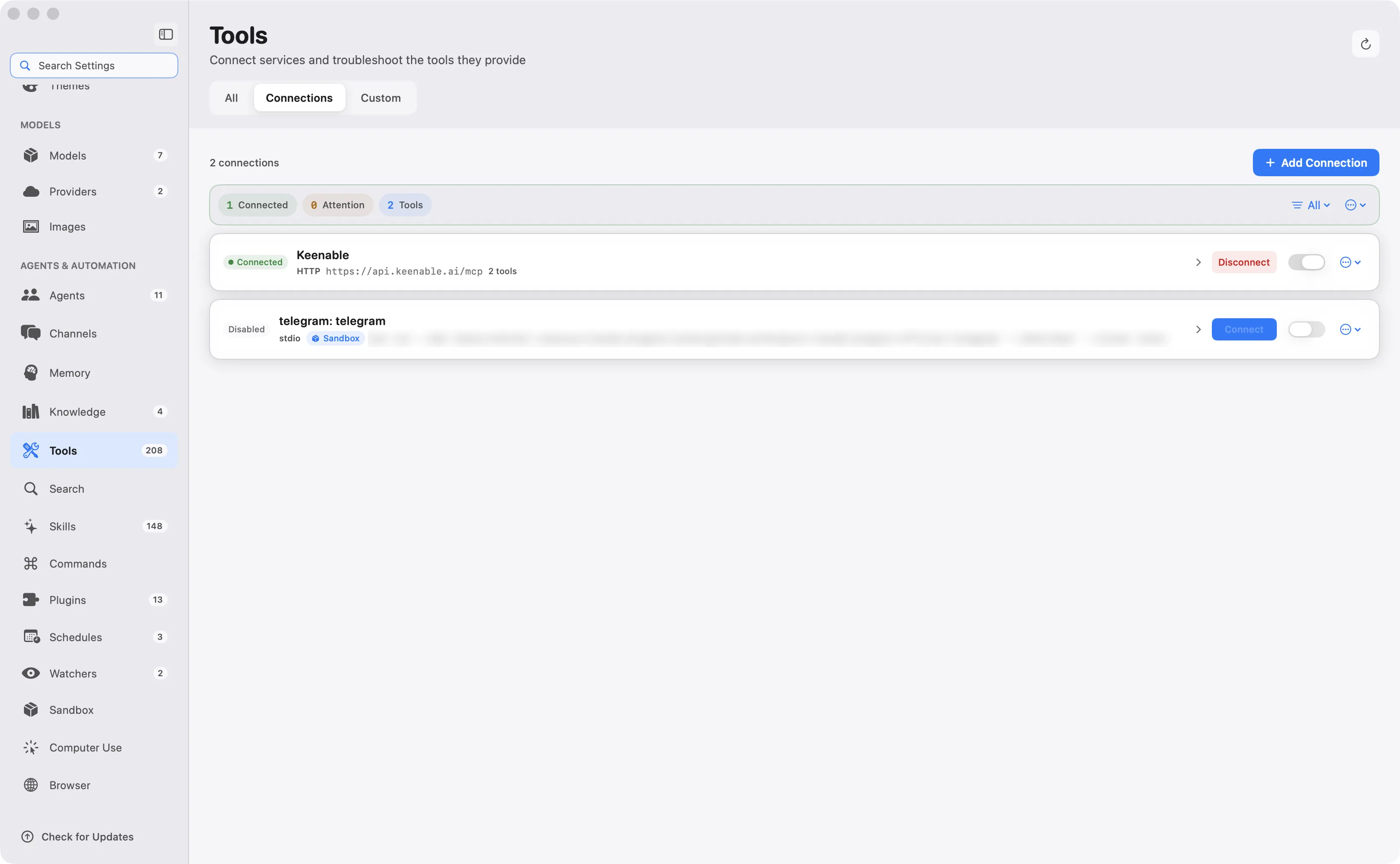
Open Settings, then look under Agents and Automation in the left sidebar and click Tools.
Across the top you'll see two tabs, and they're the two ways to extend your AI:
- Connections - ready-made services. Point and click.
- Custom - your own tools, defined as JSON recipes.
Everything in this post happens on one of those two tabs.
How do you add a ready-made MCP connection?
Three steps.
- Go to Settings › Tools › Connections.
- Click Add Connection. Osaurus opens a gallery of ready-made integrations - GitHub, Atlassian, Canva, Cloudflare, Cloudinary, DeepWiki, Exa Search, Google Workspace, HubSpot, Hugging Face, Linear, monday.com and more.
- Pick your service. Osaurus connects it and equips your agents with its tools automatically.
No coding. No raw JSON. Anyone can do this quickly.
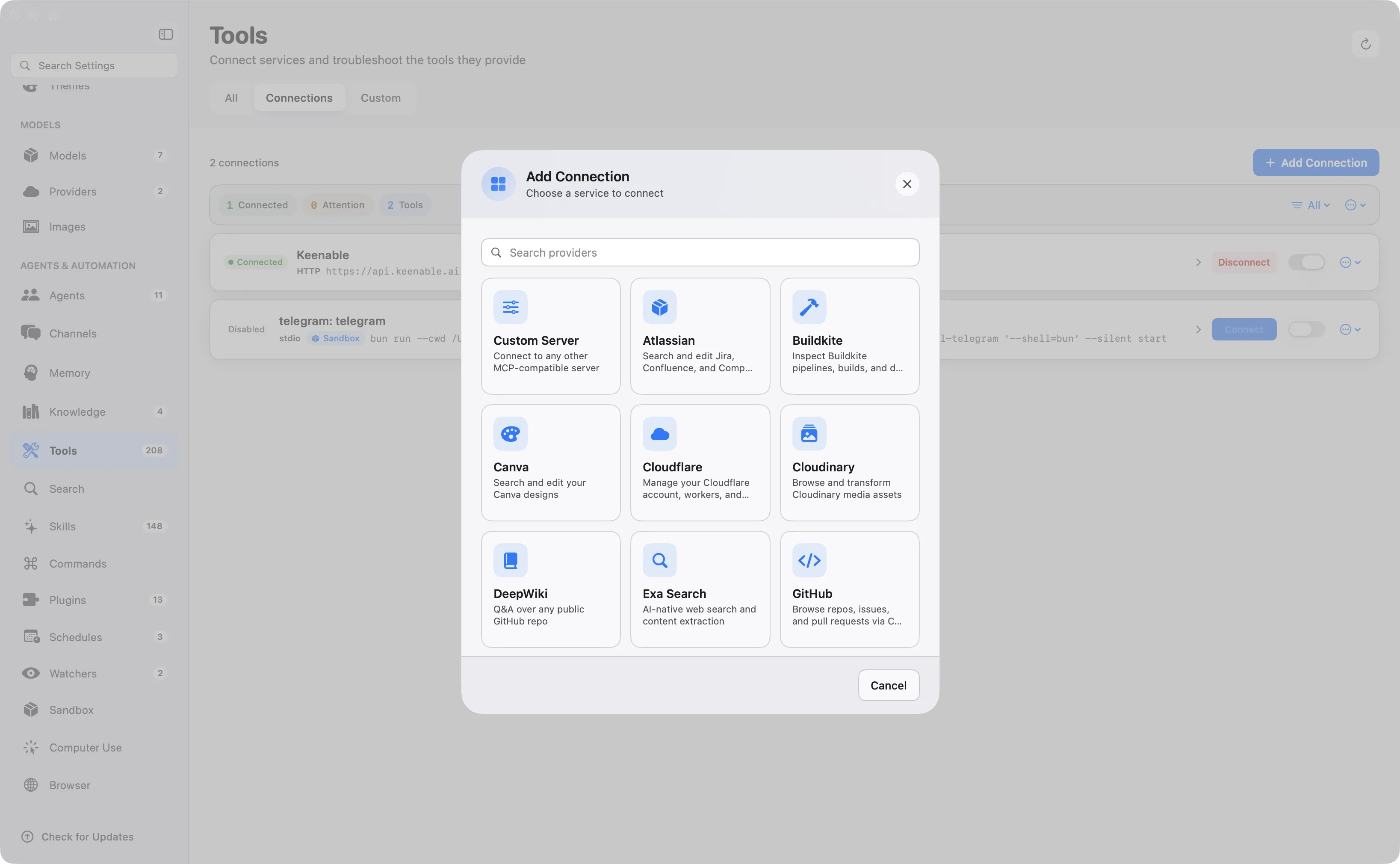
Note the first card in that gallery: Custom Server. That connects Osaurus to any other MCP-compatible server, by URL or by command, which covers everything the catalogue doesn't.
What happens the first time a tool runs?
Osaurus asks.
The first time an agent tries to use a newly connected tool, you get a prompt showing exactly which tool wants to run, what it does, and the arguments it's about to run with. You choose Allow, Deny, or Always Allow if it's something you'll approve every time anyway.
This is the part that makes connecting tools sensible rather than nerve-wracking. You're not handing a model blanket permission to act on your machine. You're approving specific calls, and you can see the payload before you do.
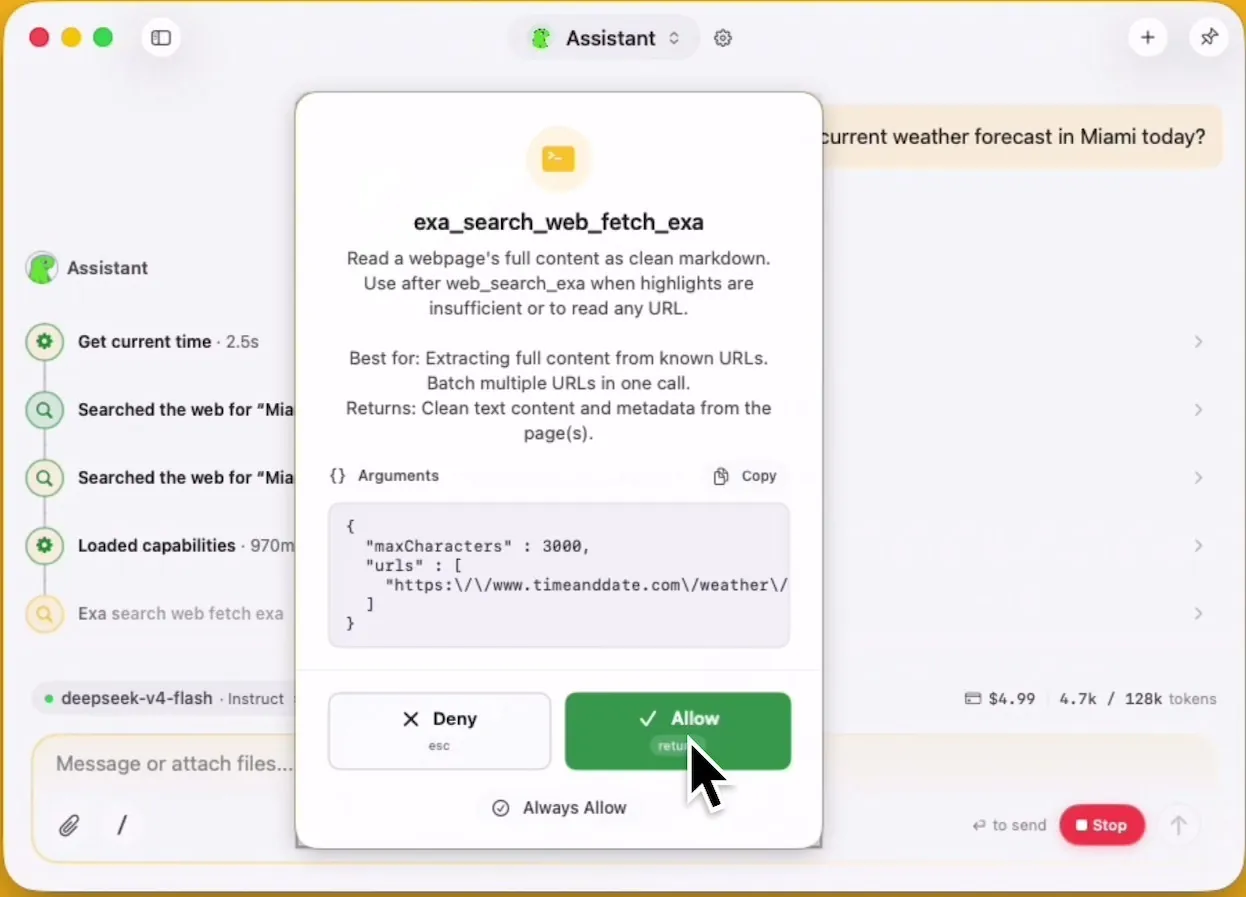
To test a connection, ask something the model can't answer from training data alone. In the walkthrough we ask for today's weather in Miami - the agent checks the current time, runs a web search through the connected server, fetches the page, and answers. You can watch each step as it happens.
How do you add your own custom tool?
For power users, Osaurus takes JSON recipes.
Go to Settings › Tools › Custom. You get two buttons:
- Import - load a JSON file someone else wrote, or one you're reusing across machines.
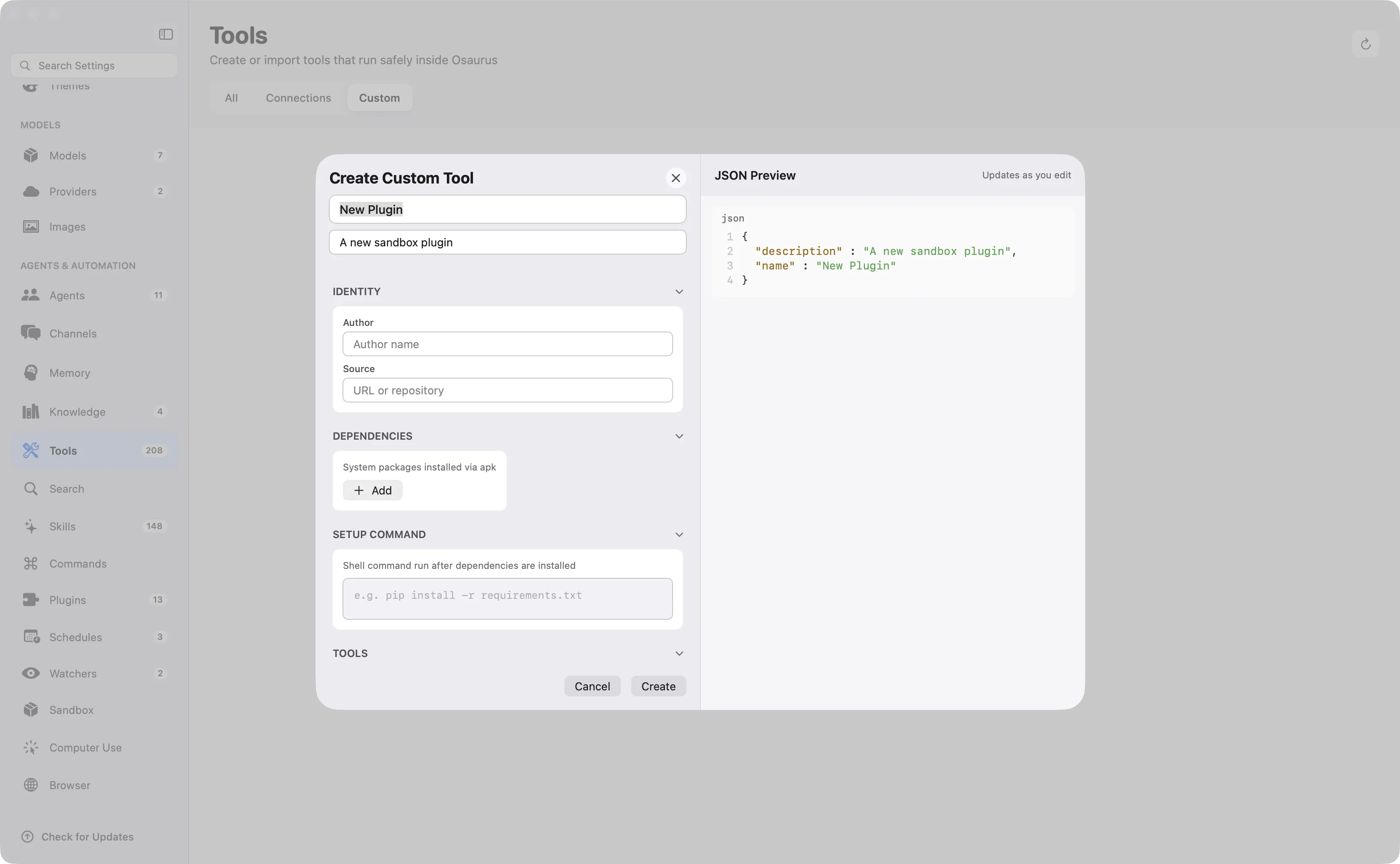
- New Custom Tool - build one in the editor, with a live JSON preview updating as you type.
Osaurus adds the tool to your workspace straight away. It is set up the first time an agent uses it, then available from there on.
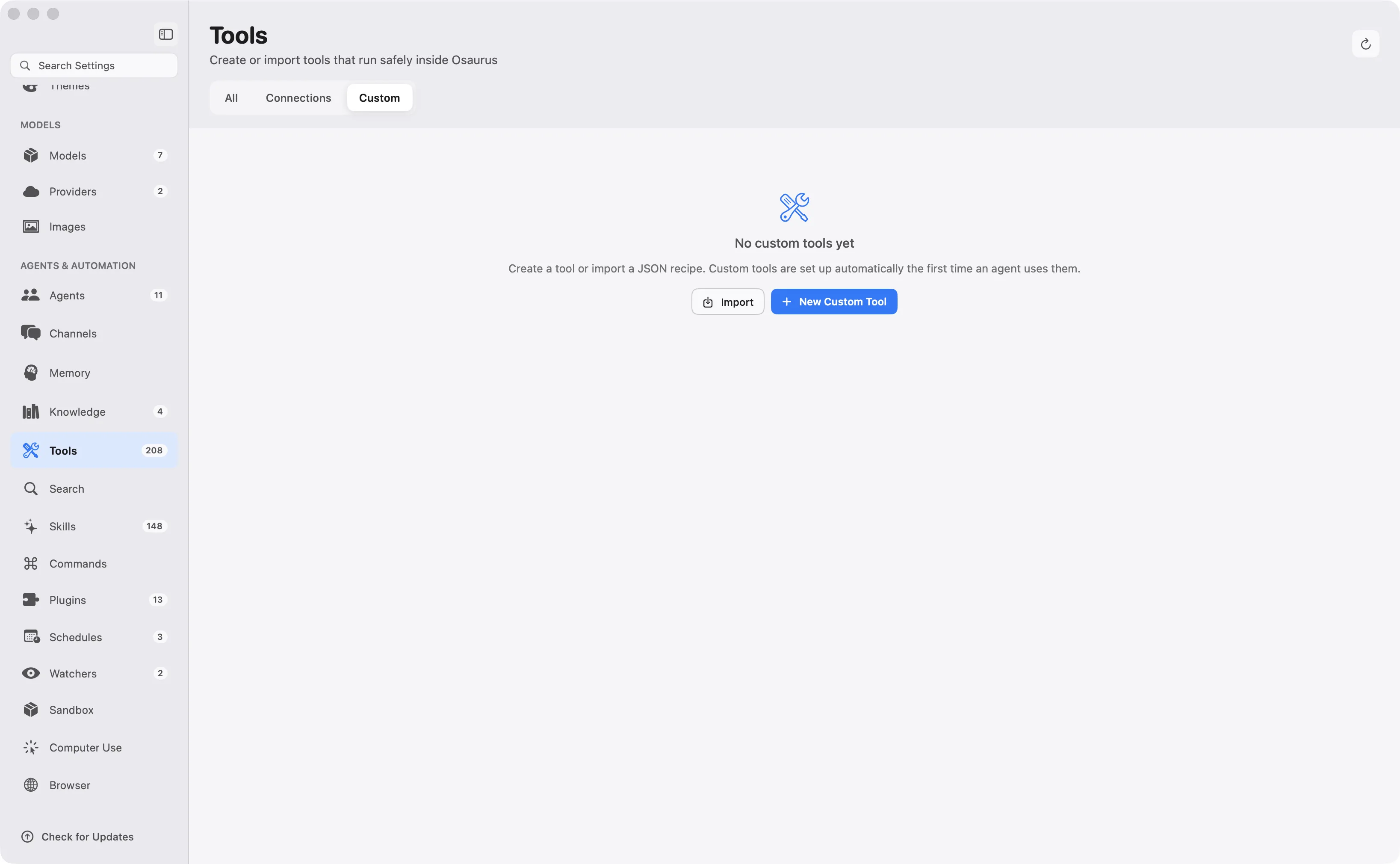
The editor covers identity (name, description, author, source), system package dependencies, a setup command that runs after dependencies install, and the tools themselves. The JSON preview on the right updates as you edit, so you can see exactly what you're producing.
The important bit: custom tools run inside Osaurus's sandbox, isolated from the rest of your Mac. A tool you imported from someone else's repo doesn't get free rein over your home directory.
How do you give an agent access to a folder?
Tools let your agent act. A folder tells it where.
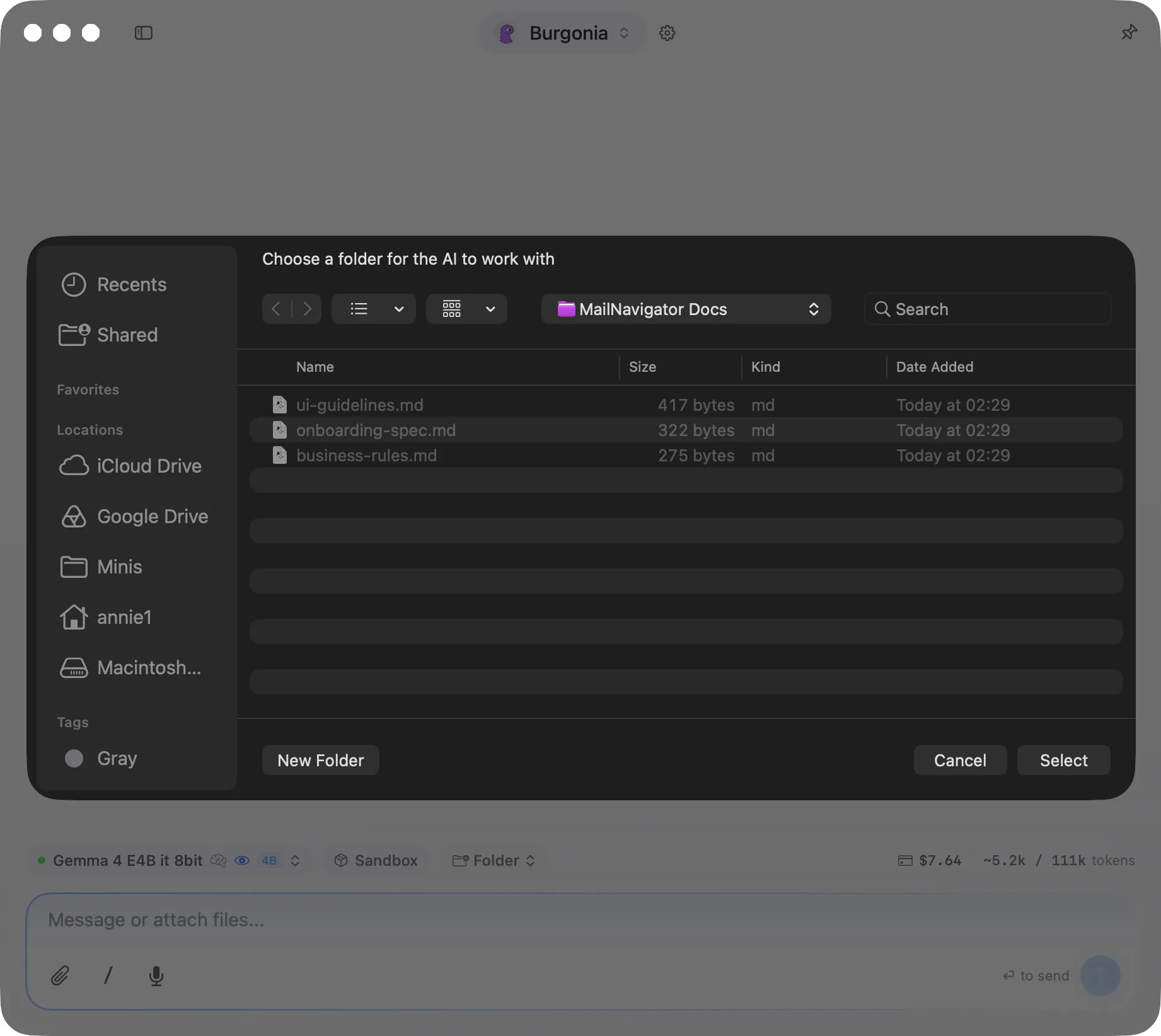
In the chat window, click the Folder chip in the toolbar under the message box. Osaurus opens a picker - "Choose a folder for the AI to work with" - and whatever you select becomes the working directory for that conversation.
Then just ask. Something like:
Please create a markdown file named welcome.md in this folder with a brief greeting message.
The file appears in Finder within seconds, formatted, sitting exactly where you said. That's the difference between a model that describes a document and an agent that writes one.
This is scoped access, not a free pass. The agent works in the folder you attached, for the conversation you attached it to.
What's worth connecting first?
The tools that save you a context switch. Some that earn their place quickly:
- Google Workspace - your mail, docs and calendar, searchable in the chat you're already in
- Stripe or your CRM - “what did I invoice last month”, answered without opening a dashboard
- A database - ask your own data questions in plain English
- A script you already run by hand - wrap the thing you do every Monday morning and stop doing it every Monday morning
- Your project tracker - Linear, Atlassian, monday.com: "what's assigned to me this week" answered in the chat you're already in
- A folder of working files - drafts, exports, reports the agent can read and write directly
- GitHub - ask questions about repos, issues and pull requests without opening a browser
Start with one. A single well-chosen connection changes how the assistant feels far more than five you never call.
The privacy bit, plainly
Worth being precise here, because MCP does involve reaching outside your machine - sometimes.
- The model still runs locally. Connecting tools doesn't move inference to a cloud provider.
- Custom tools run sandboxed, isolated from the rest of your Mac.
- Every new tool call asks first, showing the arguments before it runs.
- Remote services see what you send them. If you connect a web search API, your search queries go to that API. That's the trade, and it's visible in the permission prompt every time.
- No account is required for any of this.
The design point is that you decide the boundary, per tool, with the payload in front of you - rather than accepting one blanket policy at signup.
Osaurus is free and MIT licensed. The source is on GitHub if you'd rather check that than take our word for it.
From answering to doing
Before: a model that can tell you how to check your repo. After: an agent that checks it.
Pair it with a knowledge base and the agent knows your documents as well as your tools.
Connect one service today.
New posts, in your inbox
Subscribe to get new blog posts and product updates by email.